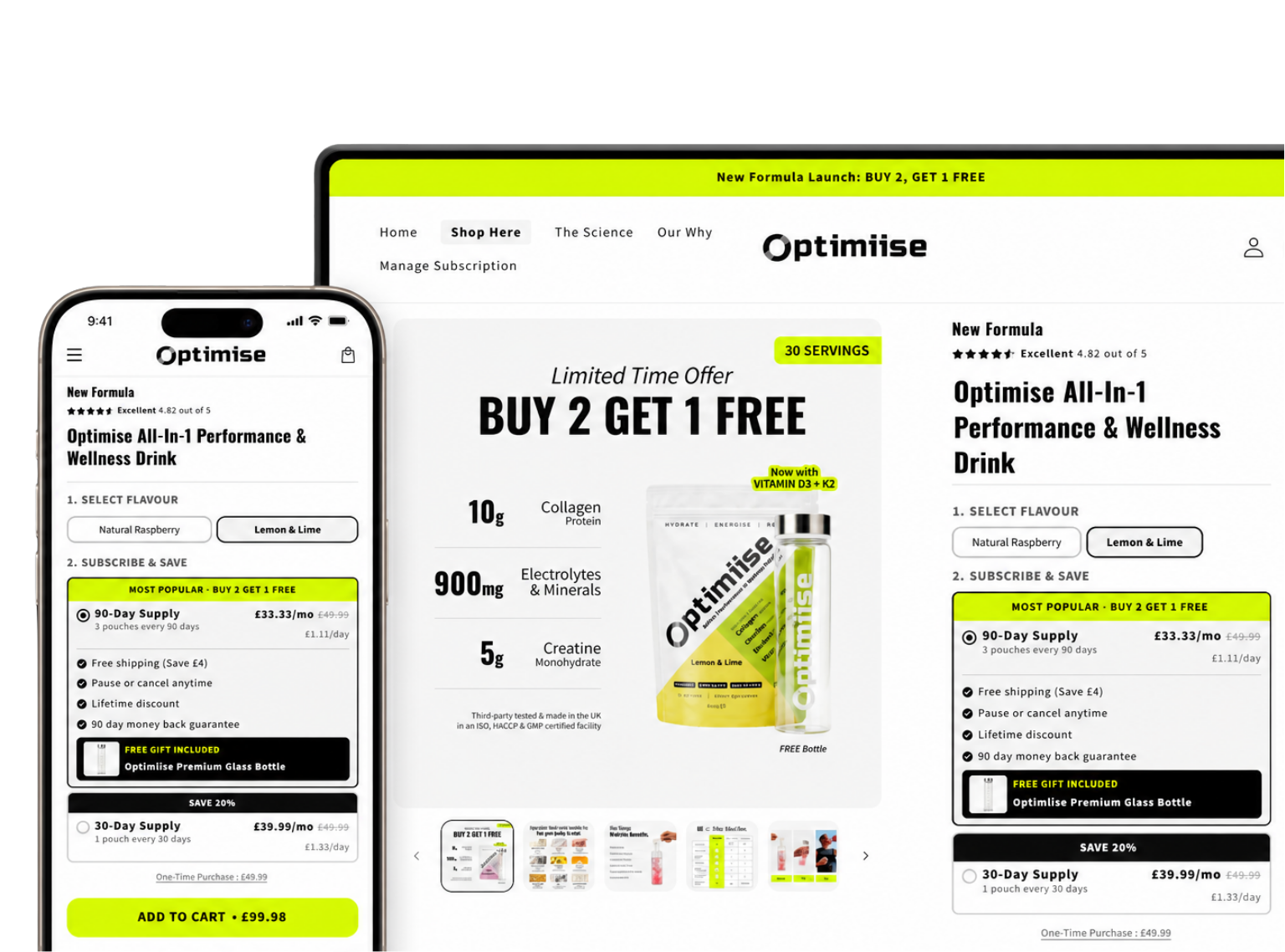
Subscriptions turn one-time buyers into repeat customers on autopilot. Instead of relying on someone to come back and reorder, a subscription does that work for you - the order processes automatically, the revenue lands in your account, and your customer gets what they need without lifting a finger.
The economics back it up. Eightx's 2026 DTC benchmark shows subscription customers generate 3–5x the lifetime value of one-time buyers at equivalent gross margins, and Rivo's 2026 Shopify retention data reports that once subscriptions reach scale, 20–30% of total store revenue flows automatically from recurring orders. That's why adding subscriptions is one of the most reliable ways to build steadier, more predictable revenue for a Shopify store. It doesn't guarantee overnight results, but over time, a healthy subscriber base smooths out the peaks and valleys that come with relying entirely on one-time sales.
This guide walks through every step from start to launch - in plain language, without assuming any technical background. We'll cover what you need before you begin, how to choose and install an app, how to configure your first subscription product, and what to check before you go live.
What You Need Before You Start
Before diving into setup, make sure you have these four things in place:
- A Shopify store on any paid plan. Subscriptions work with all current Shopify plans.
- At least one product that makes sense as a subscription. Consumables, replenishables, and curated boxes tend to work best - things customers buy repeatedly on a regular schedule.
- A compatible payment gateway. Shopify Payments works natively. Stripe also supports recurring billing. Not every payment gateway does - confirm yours supports recurring charges before setup.
- A subscription app. This is the tool that handles the recurring billing, the customer portal, and the subscription management layer. We cover how to choose one in Step 1.
That's genuinely the full list. You don't need a developer, a custom theme, or any coding knowledge to get started.
Step 1: Choose a Shopify Subscription App
Shopify gives you the checkout and the payment rails. Everything that makes a subscription feel like a subscription - the widget, the portal, the retries - comes from the app you choose.
Shopify doesn't include subscription or recurring billing functionality out of the box. To offer subscriptions, you need to install a subscription app from the Shopify App Store. The app handles everything: creating subscription plans, processing recurring charges, giving customers a portal to manage their subscriptions, and recovering failed payments.
Several solid apps exist in this space. The main options in 2026 are Joy Subscriptions, ReCharge, Bold Subscriptions, Skio, Seal Subscriptions, and Appstle. Each has different pricing, features, and complexity levels. We cover them in detail in our full comparison of Shopify subscription apps - worth reading if you're still deciding.
Here's a brief summary to orient you:
- Joy Subscriptions - Free Forever plan (up to 50 active subscriptions) includes recurring billing, customer portal, smart dunning, and widget customization. The Starter plan ($49/month + 0.75%) adds analytics and automation, with among the lowest transaction fees of any comparable app and no per-order fee. Rated 4.9 stars from 379+ merchants. Joy Subscriptions is our app. We've done our best to be fair throughout this guide.
- ReCharge - The longest-established option, well-suited to large operations and complex subscription logic. Starts at $99/month plus transaction fees.
- Bold Subscriptions - Starts at $49.99/month plus 1% transaction fees. Solid feature set, best for stores already using other Bold apps.
- Skio - Aimed at analytics-focused DTC brands, transaction-fee pricing model.
- Seal Subscriptions - Free entry plan available, good for simpler subscription setups.
- Appstle - Free tier available with upgrade paths. Strong feature depth at higher tiers.
For merchants setting up subscriptions for the first time, we recommend starting with Joy for one straightforward reason: the free plan has no revenue cap, setup takes under an hour, and you can upgrade later if you outgrow it. There's no financial risk to getting started and seeing how subscriptions perform for your store. If you would rather see it before you commit, you can preview the widget on your Shopify store first.
Step 2: Install the App and Complete Initial Setup
Once you've chosen an app, installation takes a few minutes. Here's how it works with Joy Subscriptions - the steps are similar for most apps.
Install from the Shopify App Store. Search for "Joy Subscriptions" in the Shopify App Store, click Install, and follow the permission prompts. Shopify will ask you to confirm the billing permissions the app needs - this is standard for any subscription app, since it needs permission to create recurring billing agreements.
Connect your payment gateway. After installation, Joy will prompt you to confirm your payment gateway. If you're using Shopify Payments, this is automatic. If you're using a third-party gateway like Stripe, you'll follow a short connection flow. Joy confirms gateway compatibility during this step - if there's an issue, it tells you before you go further.
Orient yourself in the dashboard. The Joy dashboard has four main areas you'll use regularly:
- Subscriptions - Where all active and paused subscriber records live. You can search, filter, and manage individual subscriptions from here.
- Plans - Where you create and manage subscription plans (billing intervals, discounts, linked products).
- Customer Portal - Where you customize the self-service portal your subscribers use.
- Settings - Payment gateway configuration, dunning rules, email notifications, and general preferences.
You don't need to configure everything on day one. Focus on Plans and the Customer Portal for initial setup - the rest you can refine after launch.
Step 3: Configure Your First Subscription Product
This is where you define what customers are actually subscribing to. In Joy, you create a subscription plan and attach it to one or more products.
Select a product. In the Plans section, click "Create Plan." You'll be prompted to select the product or products this plan applies to. Start with one product to keep things simple.
Set the billing interval. Choose how often subscribers get charged and receive their order. Common options include:
- Weekly
- Every 2 weeks (bi-weekly)
- Monthly
- Every 2 months
- Every 3 months (quarterly)
- Custom intervals (every X days, weeks, or months)
You can offer multiple intervals on a single plan - for example, monthly and every 3 months - and let customers choose at checkout. Most merchants start with monthly as their default.
Set a subscription discount. The most common model is subscribe & save - customers subscribe in exchange for a percentage discount on each order. A 10–15% discount is a common starting point - this matches what Amazon's Subscribe & Save program caps at (5% base plus a 10% bonus for five or more items), so customers already anchor to that range. The discount incentivizes the subscription without eating too deeply into margin. You're not required to offer a discount, but most stores find it meaningfully improves subscription conversion rates.
Choose the purchase type. Joy gives you two options for how the subscription plan interacts with the regular product listing:
- One-time or subscribe - The product page shows both options. Customers choose at the point of purchase. This is the most common setup and works well for products where some customers prefer to just buy once.
- Subscription only - The product is only available as a subscription. One-time purchase is removed. Use this for subscription-exclusive products or when you want to commit customers to a recurring relationship.
For most merchants starting out, "one-time or subscribe" is the right default. It doesn't restrict customers, and it gives you data on what percentage choose to subscribe versus buy once.
Save the plan. It's now ready to attach to your product page via the widget.
Step 4: Add the Subscription Widget to Your Product Page
The subscription widget is the interface your customers see on the product page - it's where they choose between a one-time purchase and a subscription, select their billing frequency, and see their discount.
What customers see. A typical widget shows two options side by side: "One-time purchase" and "Subscribe & Save." When a customer selects the subscription option, a dropdown appears letting them choose their delivery frequency. The discounted price updates automatically. It's a clean, familiar pattern - similar to what Amazon and most DTC subscription brands use.
How to add it. In Joy, go to Widget in the left navigation. Joy uses Shopify's App Embed system, which means adding the widget doesn't require editing theme code. You'll be directed to the Shopify Theme Editor, where you add the Joy Subscriptions block to your product template. It's a drag-and-drop operation.
Theme compatibility. Joy works with all Online Store 2.0 themes, including Dawn (Shopify's default free theme), Debut, and most popular paid themes. If you're on an older theme that predates OS 2.0, Joy's support team can help with manual installation - reach out via the in-app chat.
Customization. You can adjust the widget's colors, labels, and layout to match your store's branding directly inside the Joy dashboard. Changes preview in real time before you publish.
Once the widget is live on your product page, customers can start subscribing. But before you send any traffic to it, finish Steps 5 through 7.
Step 5: Set Up the Customer Portal
The customer portal is a self-service page where subscribers can manage their own subscriptions without contacting your support team. From the portal, customers can:
- Skip an upcoming order
- Pause their subscription temporarily
- Change their delivery frequency
- Update their shipping address or payment method
- Cancel their subscription
- Swap products (if you enable this)
This matters more than it might seem. Subscribers who can't easily manage their own subscription will contact your support team instead - or worse, dispute the charge with their bank. A well-configured portal dramatically reduces subscription-related support tickets and chargebacks.
How to set it up. In Joy, go to Customer Portal in the left navigation. You'll see a live preview of the portal alongside customization options. At minimum, configure:
- Branding - Upload your logo, set your primary color, and match the portal's appearance to your store. Customers should feel like they're still on your site, not inside a third-party tool.
- Allowed actions - Choose which actions subscribers can take. Most merchants enable skip, pause, frequency change, and address update. Cancellation is enabled by default - you can add a cancellation flow that offers a discount or pause before confirming the cancel.
- Portal link - Joy generates a unique portal link for each subscriber, delivered via email. Make sure your subscription confirmation email includes this link (Joy handles this automatically).
The portal is live as soon as you save your settings. Subscribers will be able to access it from their confirmation emails from their very first order.
Step 6: Configure Dunning (Failed Payment Recovery)
Dunning is the process of recovering failed subscription payments. It sounds like a dry accounting term, but it's one of the most important parts of running a subscription business.
Credit cards expire, bank accounts change, and temporary holds happen. When a recurring charge fails, you have a short window to recover the payment before the subscription lapses. This is called involuntary churn - subscribers who didn't intend to cancel but lost their subscription because of a payment failure. FlyCode's 2026 payment recovery analysis reports failed payments account for 20–40% of all subscription churn - meaning skipping the dunning setup leaves a fifth to two-fifths of your potential revenue on the table.
How to set up Smart Retry in Joy. In Joy, go to Settings > Payment Recovery. Joy's Smart Retry feature automatically retries failed charges on a configurable schedule - typically at 3, 7, and 14 days after the initial failure. You can also configure automated emails that notify the subscriber of the failure and prompt them to update their payment method.
The default retry settings work well for most stores. We recommend enabling dunning emails so subscribers have a chance to fix the issue before their subscription is cancelled.
We cover dunning in more detail in our guide to dunning management - worth reading once you're past initial setup and want to optimize recovery rates.
Step 7: Test Before You Launch
Before you start promoting your subscriptions, place a test order to make sure everything works end to end. Shopify has a test mode that lets you simulate a real purchase without charging a card.
How to place a test order. In your Shopify admin, go to Settings > Payments and enable test mode on your payment gateway. Then visit your product page as a customer would, select the subscription option, choose a frequency, and complete a checkout using Shopify's test card details (available in your payment settings).
What to check after the test order:
- Widget displays correctly - Does the subscription option appear cleanly on the product page? Does the frequency selector show the options you configured? Does the discounted price update properly?
- Confirmation email sends - Did the subscriber receive a confirmation email? Does it include the customer portal link?
- Subscription appears in Joy dashboard - Log in to Joy and confirm the test subscription shows up under Subscriptions with the correct details: product, frequency, next billing date.
- Customer portal is accessible - Click the portal link from the confirmation email. Does it open? Can you see the subscription details, skip an order, and update the frequency?
- Dunning is configured - Check Settings > Payment Recovery to confirm retry rules are active.
Once all five checks pass, disable test mode and you're ready to go live.
Your Pre-Launch Checklist
Launch tip: Test the full cycle with a real card and a one-day billing interval before you go live. Reading the settings screen tells you what should happen; a live test charge tells you what does.
- Subscription app installed and connected to your payment gateway
- At least one subscription plan created with billing interval and discount configured
- Plan attached to at least one product
- Subscription widget added to the product page and displaying correctly
- Customer portal branded to match your store (logo, colors)
- Portal actions configured (skip, pause, cancel, address update)
- Subscription confirmation email includes customer portal link
- Dunning / Smart Retry enabled with at least one retry rule active
- Test order placed and all five checks passed
- Test mode disabled before going live
What Happens After Launch
Once subscriptions are live, the day-to-day is quieter than you might expect.
First orders. Your first subscribers will appear in the Joy dashboard under Subscriptions. Each record shows the product, frequency, next billing date, and order history. You can see the full subscriber list, filter by status, and search by customer name or email.
Monitoring. Check the dashboard weekly in the early weeks - not because problems are likely, but because patterns emerge quickly. Which products have the highest subscription rates? Which frequencies are most popular? That data helps you decide what to promote and how to configure future plans.
Customer self-service. Most subscriber activity happens through the portal without touching your support queue. Customers skip orders before holidays, pause when they're traveling, and update addresses when they move - all on their own. You'll see this reflected in the dashboard as status changes and one-time skips.
The first dunning event. At some point - usually within the first month or two as your subscriber base grows - a payment will fail. This is normal and expected. Joy will handle the retry sequence automatically and notify the customer via email. You don't need to do anything unless a payment can't be recovered after all retries (at which point Joy marks the subscription as paused and you can decide how to handle it).
Subscriptions won't transform your business overnight. But a year in, a growing base of recurring revenue changes how the store feels to run - steadier, more predictable, with a clearer picture of what's coming in each month. The compounding effect is real: subscription-based ecommerce maintains a 67% average retention rate compared with the 31% baseline for standard ecommerce, per Envive's 2026 retention analysis.